


To switch from Weglot without losing your work: export your translations from Weglot as a CSV file, import that file into the new tool, keep the same language URL structure, and only then replace the Weglot plugin or script. In ConveyThis, translation import is available on every plan, including Free, and the import page has a dedicated converter for Weglot CSV exports. One thing to check first: as of September 2026, Weglot’s own help centre says its export feature “is available for Advanced and higher plans” (Weglot help).
The steps below cover the whole move, including what to do if your Weglot plan can’t export.

Key takeaways
- Check your Weglot plan before anything else. Weglot’s CSV/XLIFF export is on Advanced (€299/month) and above; on lower plans, Weglot says you “will need to edit your translations one by one”.
- ConveyThis imports CSV and TMX files on every plan, and converts Weglot’s CSV format automatically.
- Keep the same URL pattern (for example
/fr/) so search engines see the same pages in the same places. - Run both tools side by side on a staging copy or a single test language before you cancel.
- Plan an hour to review the pages that matter most (home, pricing, checkout) in each language after import.
Step 0: Find out whether your Weglot plan can export
Weglot’s pricing page lists “Export your translations, glossary rules and slugs as CSV or XLIFF and re-import them” as a feature of its higher tiers, and the help centre is explicit: “The import/export feature is available for Advanced and higher plans. If you’re on a lower plan, you will need to edit your translations one by one” (Weglot pricing, Weglot help, both checked 28 September 2026).
That leaves three routes:
| Your Weglot plan | Best route |
|---|---|
| Advanced or Extended | Export CSV and import it (Steps 1 to 5 below) |
| Starter, Business or Pro, with many manual edits you paid for | Consider upgrading for one billing period to export, then cancel. Compare the upgrade cost with what re-editing would cost you. |
| Starter, Business or Pro, mostly automatic translations | Let the new tool translate automatically, then re-apply your edits on the pages that matter most. Your glossary rules can be recreated in minutes. |
The third case deserves a second look. If nobody edited the machine output, there is little to migrate, and a fresh automatic translation is often just as good.
Step 1: Export your translations from Weglot
If your plan includes export:
A. Open your Weglot project. Log in to Weglot and open the Overview for the website you want to move.

B. Go to your translations. Under Translations, click Manage translations and use the export option to download a CSV file. Include every language you want to keep.
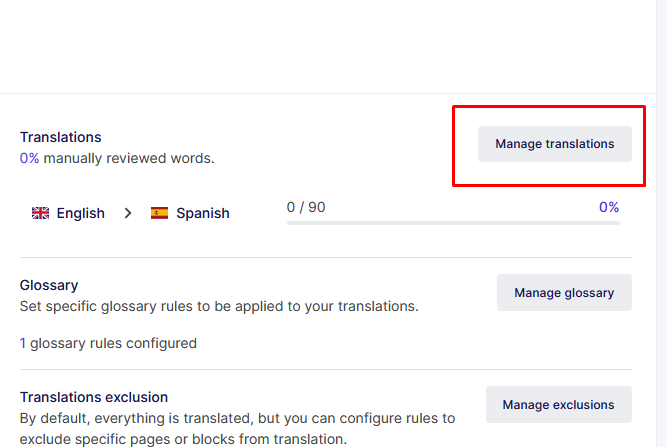
While you are in Weglot, write down:
- your URL structure (subdirectories like
/de/, or subdomains likede.example.com) - your glossary rules
- any pages or elements you excluded from translation
- whether you translated URL slugs
You will recreate these in the new tool so that nothing changes for visitors or search engines.
Step 2: Set up ConveyThis for the same site
- Create a ConveyThis account and add your website.
- Install ConveyThis the way your platform needs: the WordPress plugin, the Shopify app, or the JavaScript snippet for any other site. The integrations page lists each platform’s guide.
- Add the same languages you had in Weglot.
- Choose the same URL structure. Subdirectories and subdomains are both supported on the Business plan and higher, so pick at least Business if your Weglot site used
/de/folders orde.subdomains; see subdomain vs subdirectory setup.
Don’t remove Weglot yet. If possible, do this on a staging copy of the site first.
Step 3: Import the Weglot file
In the ConveyThis dashboard, go to Domains → Translation Management → CSV/TMX to open the Import translations page for your domain (help centre).
For a Weglot export, use the Import Weglot Translations section:
- Select the Source Language and the New Language(s).
- Click Browse… and choose your Weglot CSV.
- Check the Conversion Preview, which shows how Weglot’s columns map to ConveyThis’s format.
- Click Convert & Upload.

For files from Bablic or another tool, use the standard Import translations form above it. It accepts CSV (two columns: source text, translated text) and TMX.

The help centre recommends letting ConveyThis scan your site first, so your pages are already known when the imported strings are applied to matching content.
Step 4: Review before you switch
After the import, each language pair appears as a row with a link to Edit Translations, where you can search and correct individual strings.

Then check in the visual editor, one language at a time:
- home page, top product or service pages, pricing, checkout or sign-up
- navigation menus and the footer
- forms, buttons and error messages
- anything dynamic (search results, filters, pop-ups)
Recreate your glossary rules and exclusions now, so new content follows the same terminology.
Step 5: Switch over and protect your rankings
- Remove Weglot and publish ConveyThis on the live site, keeping the same language URLs.
- View the source of a translated page and confirm the
langattribute, hreflang tags linking every language, translated<title>and meta description, and a canonical tag pointing to the page itself. - If any URLs changed (for example, translated slugs that you are not recreating), add 301 redirects from the old URLs to the new ones.
- Submit your sitemap again in Google Search Console and watch the language folders over the next few weeks. Our multilingual SEO guide explains what ConveyThis adds for each language.
- Cancel Weglot only after the translated pages are live and verified.
What changes on the bill
Both services cap words, translated languages, websites and monthly translation requests, so compare all four at your size. At similar tiers, as of 28 September 2026:
| Tier | Weglot (EUR/month) | ConveyThis (USD/month) |
|---|---|---|
| Entry | Starter €15: 10,000 words, 1 language | Starter $12: 30,000 words, 1 language |
| Small team | Business €29: 50,000 words, 3 languages | Business $24: 100,000 words, 3 languages |
| Several sites | Pro €79: 200,000 words, 5 languages, 3 projects | Pro $64: 400,000 words, 5 languages, 3 sites |
Sources: Weglot pricing, ConveyThis pricing. Weglot also includes 20,000 monthly requests on Starter against 15,000 on ConveyThis Starter, and exporting translations from ConveyThis later requires our Pro+ plan or higher. The full comparison, including where Weglot is the better fit, is in our Weglot alternatives guide.
Frequently asked questions
Will I lose my human-edited translations? Not if you can export them. Everything in the exported file is imported as-is and can be reviewed before you go live. Edits you can’t export (on Weglot plans below Advanced) have to be re-applied by hand.
Does the import cost extra? No. Translation import is included on every ConveyThis plan, including Free.
Can I import from Bablic or other tools? Yes. Any CSV (source and translation columns) or TMX file can be uploaded through the standard import form.
Will my Google rankings drop? They shouldn’t, as long as you keep the same language URLs, hreflang tags and translated metadata. Expect normal fluctuation for a few weeks. A big drop usually means URLs changed without redirects.
How long does the move take? The import itself takes minutes. Most of the time goes on review and on recreating glossary rules and exclusions.
Next step
Create a ConveyThis account, import your Weglot export into a test language, and compare the result before you cancel anything.












;fill-opacity:1;'%20d='M%2019.511719%2039.964844%20C%208.304688%2039.964844%200%2031.289062%200%2020.324219%20L%200%2020.230469%20C%200%209.363281%208.160156%200.46875%2019.847656%200.46875%20C%2027.023438%200.46875%2031.320312%202.878906%2034.847656%206.375%20L%2029.519531%2012.492188%20C%2026.59375%209.820312%2023.59375%208.179688%2019.800781%208.179688%20C%2013.390625%208.179688%208.761719%2013.53125%208.761719%2020.085938%20L%208.761719%2020.203125%20C%208.761719%2026.757812%2013.273438%2032.203125%2019.800781%2032.203125%20C%2024.144531%2032.203125%2026.808594%2030.46875%2029.808594%2027.722656%20L%2035.136719%2033.121094%20C%2031.199219%2037.335938%2026.855469%2039.964844%2019.511719%2039.964844%20'/%3e%3cpath%20style='%20stroke:none;fill-rule:nonzero;fill:rgb(26.274511%25,42.352942%25,94.901961%25);fill-opacity:1;'%20d='M%2035.878906%200.0351562%20L%2044.136719%200.0351562%20L%2044.136719%2039.867188%20L%2035.878906%2039.867188%20Z%20M%2035.878906%200.0351562%20'/%3e%3cpath%20style='%20stroke:none;fill-rule:nonzero;fill:rgb(26.274511%25,42.352942%25,94.901961%25);fill-opacity:1;'%20d='M%2059.472656%2016.15625%20C%2056.039062%2016.15625%2053.808594%2018.613281%2053.160156%2022.375%20L%2065.617188%2022.375%20C%2065.113281%2018.664062%2062.953125%2016.15625%2059.472656%2016.15625%20M%2073.535156%2027.578125%20L%2053.28125%2027.578125%20C%2054.097656%2031.335938%2056.710938%2033.3125%2060.40625%2033.3125%20C%2063.191406%2033.3125%2065.183594%2032.445312%2067.464844%2030.300781%20L%2072.191406%2034.492188%20C%2069.480469%2037.867188%2065.566406%2039.941406%2060.289062%2039.941406%20C%2051.527344%2039.941406%2045.070312%2033.769531%2045.070312%2024.832031%20L%2045.070312%2024.710938%20C%2045.070312%2016.347656%2051%209.480469%2059.472656%209.480469%20C%2069.191406%209.480469%2073.65625%2017.074219%2073.65625%2025.363281%20L%2073.65625%2025.457031%20C%2073.65625%2026.300781%2073.609375%2026.808594%2073.535156%2027.578125%20'/%3e%3cpath%20style='%20stroke:none;fill-rule:nonzero;fill:rgb(26.274511%25,42.352942%25,94.901961%25);fill-opacity:1;'%20d='M%2089.375%2039.796875%20L%2081.863281%2039.796875%20L%2070.390625%2010.324219%20L%2079.152344%2010.324219%20L%2085.679688%2029.914062%20L%2092.257812%2010.324219%20L%20100.847656%2010.324219%20Z%20M%2089.375%2039.796875%20'/%3e%3cpath%20style='%20stroke:none;fill-rule:nonzero;fill:rgb(26.274511%25,42.352942%25,94.901961%25);fill-opacity:1;'%20d='M%20111.550781%2016.15625%20C%20108.121094%2016.15625%20105.886719%2018.613281%20105.238281%2022.375%20L%20117.695312%2022.375%20C%20117.191406%2018.664062%20115.03125%2016.15625%20111.550781%2016.15625%20M%20125.617188%2027.578125%20L%20105.359375%2027.578125%20C%20106.175781%2031.335938%20108.792969%2033.3125%20112.488281%2033.3125%20C%20115.246094%2033.3125%20117.265625%2032.445312%20119.542969%2030.300781%20L%20124.273438%2034.492188%20C%20121.558594%2037.867188%20117.648438%2039.941406%20112.367188%2039.941406%20C%20103.609375%2039.941406%2097.152344%2033.769531%2097.152344%2024.832031%20L%2097.152344%2024.710938%20C%2097.152344%2016.347656%20103.078125%209.480469%20111.550781%209.480469%20C%20121.273438%209.480469%20125.734375%2017.074219%20125.734375%2025.363281%20L%20125.734375%2025.457031%20C%20125.734375%2026.300781%20125.6875%2026.808594%20125.617188%2027.578125%20'/%3e%3cpath%20style='%20stroke:none;fill-rule:nonzero;fill:rgb(26.274511%25,42.352942%25,94.901961%25);fill-opacity:1;'%20d='M%20143.566406%2018.757812%20C%20138.070312%2018.757812%20134.710938%2022.085938%20134.710938%2029.074219%20L%20134.710938%2039.867188%20L%20126.457031%2039.867188%20L%20126.457031%2010.613281%20L%20134.710938%2010.613281%20L%20134.710938%2016.519531%20C%20136.390625%2012.46875%20139.128906%209.867188%20144%2010.085938%20L%20144%2018.757812%20Z%20M%20143.566406%2018.757812%20'/%3e%3c/g%3e%3c/svg%3e)




;fill-opacity:1;'%20d='M%20144.558594%2039.894531%20L%20155.4375%209.839844%20C%20155.4375%209.839844%20147.28125%209.839844%20139.121094%2011.515625%20L%20128.867188%2039.894531%20Z%20M%20142.675781%201.78125%20L%20140.585938%207.539062%20C%20148.738281%205.863281%20156.902344%205.863281%20156.902344%205.863281%20L%20158.992188%200.105469%20C%20158.992188%200.105469%20150.832031%200.105469%20142.675781%201.78125%20M%2085.980469%2032.773438%20C%2090.898438%2033.71875%2095.914062%2034.136719%20101.039062%2034.136719%20C%20106.375%2034.136719%20110.140625%2032.984375%20110.554688%2029.320312%20C%20110.765625%2027.640625%20109.089844%2026.382812%20106.167969%2024.707031%20C%20102.816406%2022.824219%2099.894531%2021.878906%2096.960938%2019.886719%20C%2094.03125%2017.898438%2092.78125%2014.859375%2093.71875%2011.507812%20C%2094.871094%207.636719%2097.585938%205.4375%20101.664062%203.34375%20C%20106.480469%200.9375%20110.242188%20-0.0078125%20119.550781%20-0.0078125%20C%20125.40625%20-0.0078125%20131.054688%200.515625%20136.597656%201.667969%20L%20134.609375%207.113281%20C%20129.691406%206.167969%20124.675781%205.75%20119.550781%205.75%20C%20114.214844%205.75%20110.453125%206.90625%20110.035156%2010.570312%20C%20109.828125%2012.246094%20111.5%2013.503906%20114.425781%2015.179688%20C%20117.773438%2017.066406%20120.695312%2018.011719%20123.628906%2020%20C%20126.558594%2021.988281%20127.808594%2025.027344%20126.871094%2028.378906%20C%20125.71875%2032.253906%20123.003906%2034.449219%20118.925781%2036.542969%20C%20114.113281%2038.949219%20110.347656%2039.894531%20101.039062%2039.894531%20C%2095.183594%2039.894531%2089.535156%2039.375%2083.992188%2038.21875%20Z%20M%2062.34375%2039.894531%20L%2071.441406%2014.867188%20C%2074.476562%206.488281%2063.390625%209.527344%2060.875%2011.515625%20C%2058.890625%2012.984375%2055.332031%2016.441406%2054.078125%2020.105469%20L%2046.859375%2040%20L%2031.175781%2040%20L%2040.273438%2014.867188%20C%2043.308594%206.488281%2032.222656%209.527344%2029.710938%2011.515625%20C%2027.722656%2012.984375%2024.167969%2016.441406%2022.910156%2020.105469%20L%2015.691406%2040%20L%200.0078125%2040%20L%2014.441406%200.105469%20C%2019.464844%200.105469%2022.179688%201.257812%2024.375%203.457031%20C%2025.207031%204.289062%2025.734375%205.339844%2026.046875%206.496094%20C%2028.980469%204.714844%2031.589844%203.351562%2033.371094%202.726562%20C%2036.613281%201.46875%2040.691406%200.105469%2045.714844%200.105469%20C%2050.734375%200.105469%2053.453125%201.257812%2055.644531%203.457031%20C%2056.480469%204.289062%2057.007812%205.339844%2057.320312%206.496094%20C%2060.25%204.714844%2062.863281%203.351562%2064.640625%202.726562%20C%2067.886719%201.46875%2071.964844%200.113281%2076.984375%200.113281%20C%2082.007812%200.113281%2084.722656%201.265625%2086.917969%203.464844%20C%2089.21875%205.660156%2089.113281%209.742188%2088.28125%2012.050781%20L%2078.027344%2039.902344%20L%2062.34375%2039.902344%20Z%20M%2062.34375%2039.894531%20'/%3e%3c/g%3e%3c/svg%3e)

;fill-opacity:1;'%20d='M%202.453125%209.882812%20L%202.453125%2012.851562%20L%207.304688%2012.851562%20L%2016.800781%2030.734375%20L%2028.488281%2030.734375%20L%2037.980469%2012.824219%20L%2042.832031%2012.792969%20L%2042.84375%209.882812%20L%2028.328125%209.882812%20L%2028.328125%2012.804688%20L%2032.195312%2012.804688%20L%2025.488281%2025.515625%20L%2018.234375%2012.847656%20L%2023.527344%2012.824219%20L%2023.515625%209.882812%20Z%20M%2096.097656%209.882812%20L%2096.097656%2012.851562%20L%20100.949219%2012.851562%20L%20110.445312%2030.734375%20L%20122.128906%2030.734375%20L%20131.625%2012.824219%20L%20136.476562%2012.792969%20L%20136.484375%209.882812%20L%20121.972656%209.882812%20L%20121.972656%2012.804688%20L%20125.835938%2012.804688%20L%20119.132812%2025.515625%20L%20111.878906%2012.847656%20L%20117.167969%2012.824219%20L%20117.160156%209.882812%20Z%20M%2072.222656%209.882812%20L%2072.222656%2012.851562%20L%2077.078125%2012.851562%20L%2077.082031%2027.453125%20L%2071.96875%2027.453125%20L%2071.96875%2030.707031%20L%2077.085938%2030.734375%20L%20101.3125%2030.734375%20L%20101.3125%2021.027344%20L%2098.15625%2021.027344%20C%2097.984375%2026.167969%2093.542969%2027.457031%2091.675781%2027.457031%20C%2089.960938%2027.457031%2086.640625%2027.453125%2086.640625%2027.453125%20L%2086.640625%2012.847656%20L%2091.417969%2012.824219%20L%2091.410156%209.882812%20Z%20M%2055.890625%209.285156%20C%2047.644531%209.285156%2040.960938%2014.214844%2040.960938%2020.292969%20C%2040.960938%2026.375%2047.644531%2031.304688%2055.890625%2031.304688%20C%2064.136719%2031.304688%2070.824219%2026.375%2070.824219%2020.292969%20C%2070.824219%2014.214844%2064.136719%209.285156%2055.890625%209.285156%20Z%20M%2055.675781%2028.0625%20C%2052.769531%2028.0625%2050.414062%2024.566406%2050.414062%2020.25%20C%2050.414062%2015.933594%2052.769531%2012.4375%2055.675781%2012.4375%20C%2058.582031%2012.4375%2060.941406%2015.933594%2060.941406%2020.25%20C%2060.941406%2024.566406%2058.582031%2028.0625%2055.675781%2028.0625%20Z%20M%20149.539062%208.921875%20C%20141.289062%208.921875%20134.605469%2013.933594%20134.605469%2020.113281%20C%20134.605469%2026.292969%20141.289062%2031.300781%20149.539062%2031.300781%20C%20157.78125%2031.300781%20164.46875%2026.292969%20164.46875%2020.113281%20C%20164.46875%2013.933594%20157.78125%208.921875%20149.539062%208.921875%20Z%20M%20149.324219%2028.007812%20C%20146.417969%2028.007812%20144.0625%2024.453125%20144.0625%2020.066406%20C%20144.0625%2015.679688%20146.417969%2012.125%20149.324219%2012.125%20C%20152.230469%2012.125%20154.585938%2015.679688%20154.585938%2020.066406%20C%20154.585938%2024.453125%20152.230469%2028.007812%20149.324219%2028.007812%20Z%20M%20149.324219%2028.007812%20'/%3e%3c/g%3e%3c/svg%3e)