
ConveyThis: Easy Steps to Set Up Subdomains and Subdirectories
Subdomain vs Subdirectory (simple explanation)
Use a subdomain (fr.example.com). Each language is its own hostname, and your main site stays on your host. You add one CNAME record per language.
Subdirectory (example.com/fr/) puts languages in folders on the same domain. On a custom site that means pointing the domain at ConveyThis, so the whole site is served through us. That is the setup that causes most of the problems: DNS, SSL, redirects, and the original site going offline. Use it only if you specifically need /fr/ URLs.
Both add hreflang tags. Sub-domain and Sub-directory are on the Business plan or higher.
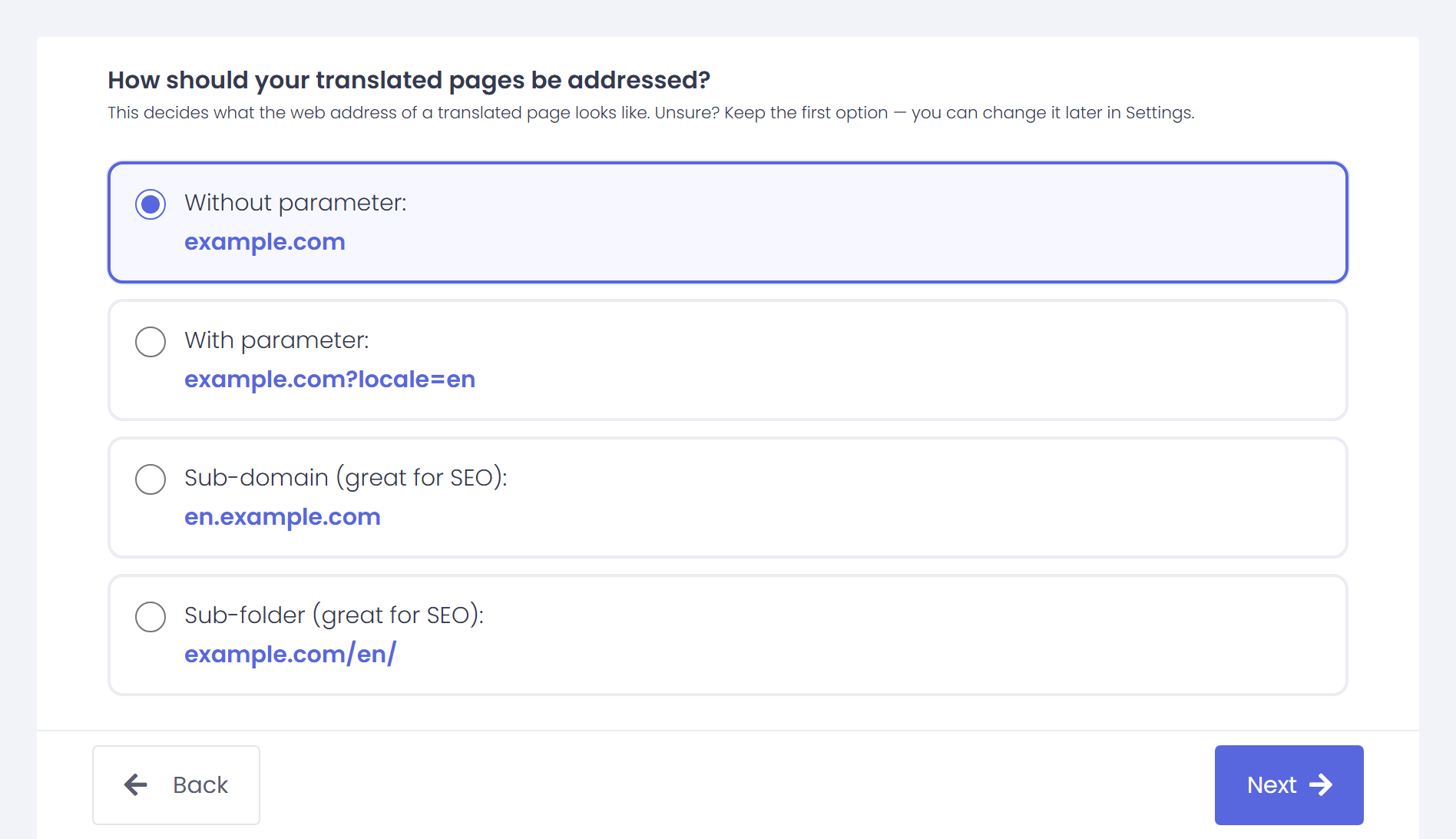
- Subdomain means each language is on its own hostname:
fr.example.com,nl.example.com - Subdirectory means languages live under folders on the same domain:
example.com/fr/,example.com/nl/
Which to choose
- Subdomain (use this).
example.comstays on your host. Onlyfr.example.compoints at ConveyThis. Search engines can index it, and ConveyThis adds hreflang. - Subdirectory (skip unless you need
/fr/). The site’s own DNS points at ConveyThis. A wrong record takes the original site down, not only the translations. - WordPress. The plugin turns Sub-directory on by itself, and
/fr/works there without a DNS change. Switch Url Structure in the plugin to Sub-domain if you want language hostnames.
Subdomain vs Subdirectory: Key Differences
| Feature | Subdomain | Subdirectory |
|---|---|---|
| URL example | fr.example.com | example.com/fr/ |
| Server setup | Often treated as a separate site | Handled within the same site/app |
| SEO authority | May be split across subdomains | Shared under one main domain |
| Crawling & indexing | Search engines may crawl separately | Crawled as part of the main site |
| hreflang implementation | Supported | Supported |
| Analytics & tracking | Can require cross-subdomain tracking | Simpler tracking setup |
| Use case | Recommended. Your site stays on your host | Only if you need /fr/ URLs |
| SEO recommendation | Use this | Skip unless you need /fr/ URLs |
Platform limits: check this before you choose
Not every platform can use both structures. ConveyThis hides or disables the option that will not work for your site type, so if you don’t see it in the dashboard, this is why:
- Shopify: the Sub-directory option is not available. A Shopify store cannot be served through a proxy on a path (
example.com/fr/), so the Sub-folder option is not offered for Shopify domains. Use the Sub-domain option instead (fr.example.com, one CNAME record per language) or keep the default structure. - Wix, Bubble, Framer, Lovable: neither Sub-domain nor Sub-directory is currently supported, so only the default and
?locale=structures are offered. We are actively working on enabling this and will share updates as soon as it becomes available. - WordPress: Url Structure is set in the plugin, not in the dashboard. Sub-directory is on by default and needs no DNS. Switch it to Sub-domain in the plugin if you want language hostnames (see the WordPress section below).
- Squarespace: both structures work, but Sub-directory needs an extra A record for
www(see the Squarespace note below).
Two more things to know:
- Plan: Sub-domain and Sub-directory require the Business plan or higher. On Free and Starter plans the options are disabled. If you did not see them during the setup wizard, you can select them later in Settings → URL Structure.
- Naming: the setup wizard calls this option Sub-folder, the Settings page calls it Sub-directory. It is the same structure (
example.com/fr/).
If you choose Subdomains → add CNAME records
Use this option when you want to set up language-specific subdomains, such as fr.example.com, nl.example.com, etc.
For location-based setup, this configuration treats each version as an independent website. For example, the French version (fr.example.com) is tailored specifically for the France region, with its own localized content and settings.
How to set it up:
- In your ConveyThis dashboard, open your domain and go to:
General Settings → Settings → URL Structure
Select Sub-domain (great for SEO) - ConveyThis will display the required DNS target (the “ConveyThis server name”) for your language subdomains
- In your DNS manager, add one CNAME record per language:
- Name / Host: the language code (example:
nl) - Type: CNAME
- Points to / Target: the ConveyThis server name (example:
dns2.conveythis.com)
Official guide (recommended): https://www.conveythis.com/help/add-cname-records-in-dns-manager
After saving DNS changes: DNS can take a few minutes up to 24 hours to propagate. Once it’s propagated, return to the ConveyThis dashboard and verify the connection. If you have any questions, contact [email protected] or use the contact form
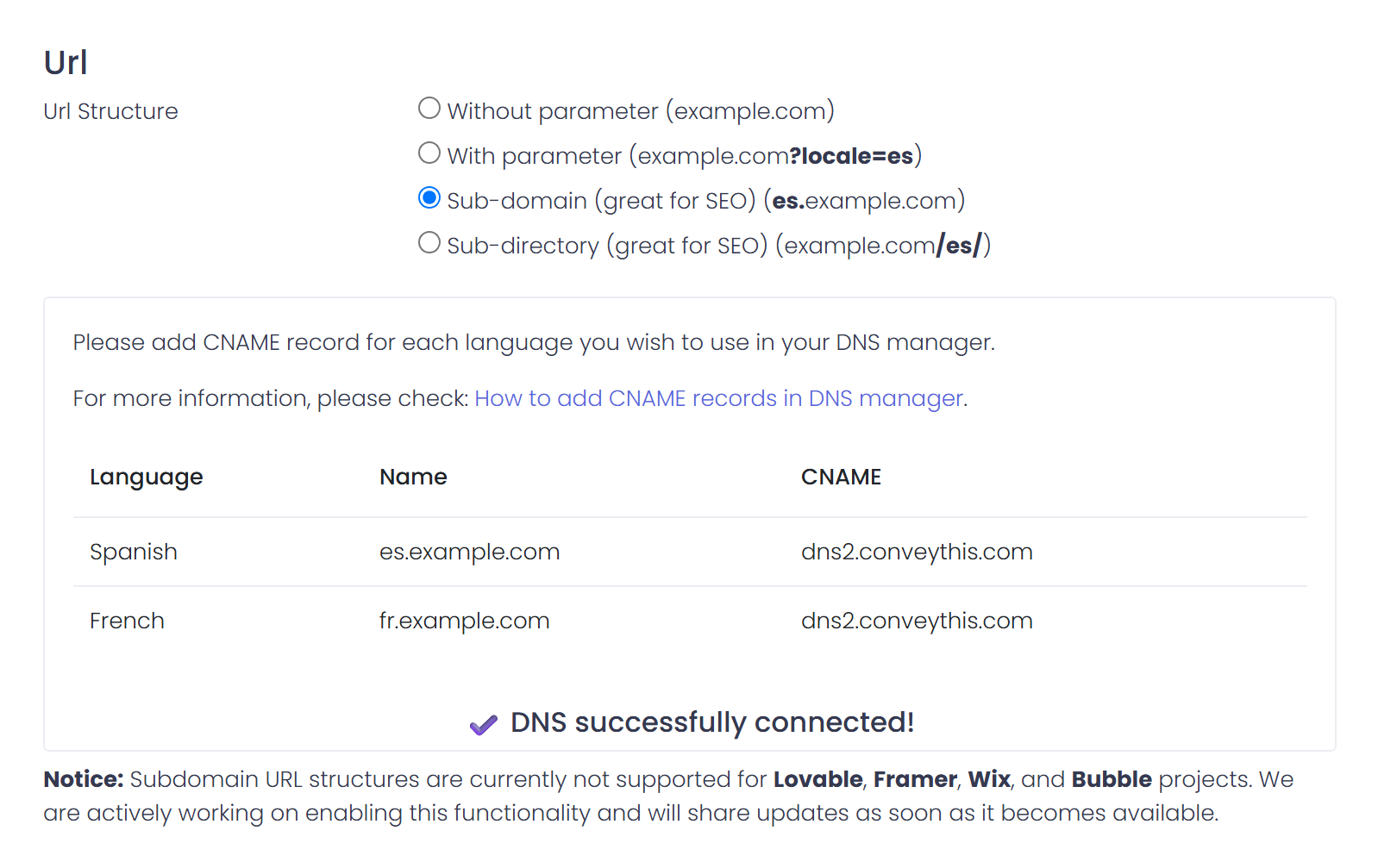
Subdomain URL structure selected — add a CNAME record for each language
If you choose Subdirectories → add an A (IPv4) record
Use this only when you need URLs like example.com/fr. The domain’s A record points at ConveyThis, so the whole site is served through us. This is the setup that causes most of the problems.
- In your ConveyThis dashboard, open your domain and go to:
General Settings → Settings → URL Structure
Select Sub-directory (great for SEO) - In your DNS manager, add an A record for the main domain:
- Type: A
- Name / Host:
@ - Value: 178.156.132.155
After saving the DNS changes, wait for DNS propagation, then go back to ConveyThis and use the DNS test / connection check in your dashboard to confirm it’s connected. If anything doesn’t work as expected, contact [email protected] or use the ConveyThis contact form.
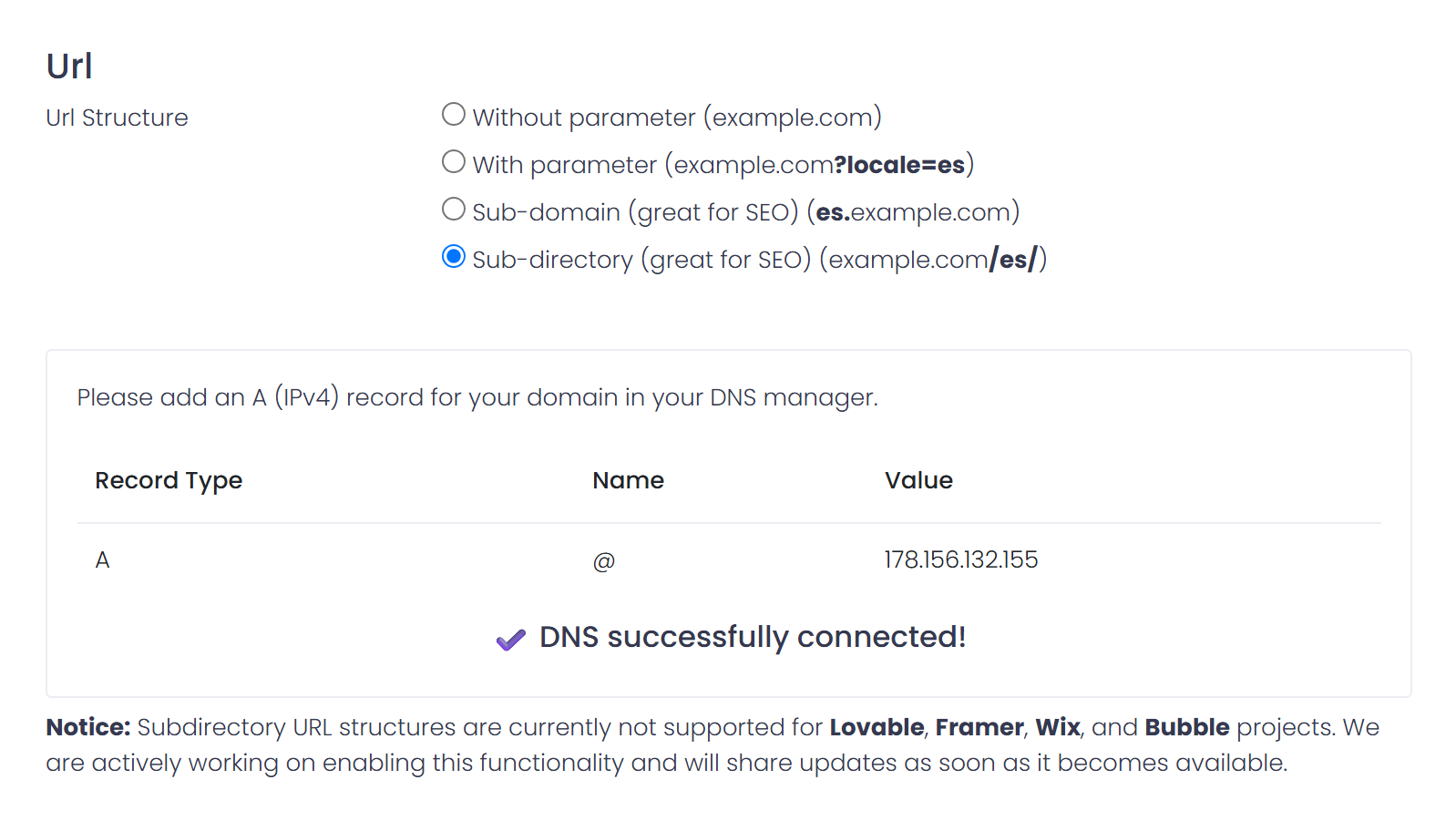
DNS configuration screen confirming a successful A record connection with the sub-directory URL structure selected
WordPress websites
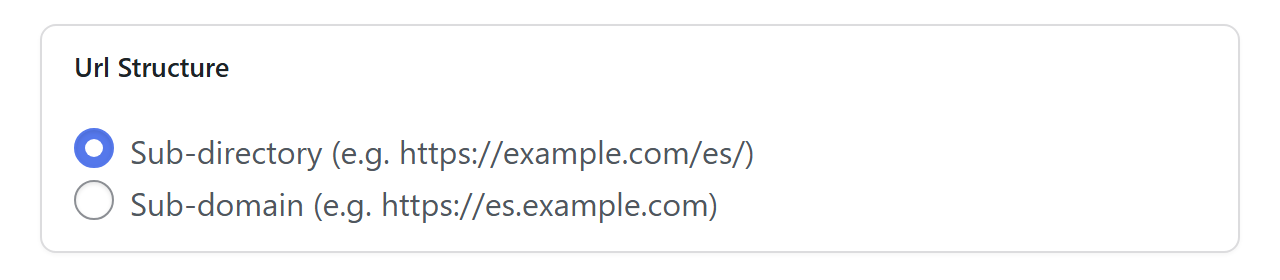
The plugin turns Sub-directory on by default, and /fr/ works there without a DNS change. To use a subdomain, set Url Structure in the plugin to Sub-domain and add the CNAME records it shows.
Squarespace note (important)
Squarespace normally requires specific DNS records for @ (and www). To use the Subdirectory option for Squarespace:
- In your DNS manager, delete the
wwwCNAME pointing toext-cust.squarespace.com. - In your DNS manager, add an A record for
www:- Type: A
- Name / Host:
www - Value: 178.156.132.155
We also recommend using the Subdomain option (CNAME per language) or contacting [email protected] if you are having any difficulties.
www vs non-www (important)
Your site can live on either example.com (non-www / apex, shown as @ in DNS) or www.example.com. Redirects decide which one is primary, but DNS still must resolve both, otherwise visitors/bots may fail before a redirect happens.
- If your primary site is non-www, your subdirectories will be
example.com/fr/ - If your primary site is www, your subdirectories will be
www.example.com/fr/
After you apply the DNS updates, the changes won’t appear instantly—DNS needs time to propagate across the internet. Once propagation is complete, open your ConveyThis dashboard and run the DNS check to confirm the setup. If your translated URLs don’t load yet, verify you edited the correct record (for @ vs www) and that your hosting platform’s required DNS entries are still in place (except for Squarespace records). If you’re stuck, email [email protected] with your domain and the DNS records you currently have, and our team will guide you through the fix.