
Shopify Translate Checkout Integration
No card details
No commitment













;fill-opacity:1;'%20d='M%2019.511719%2039.964844%20C%208.304688%2039.964844%200%2031.289062%200%2020.324219%20L%200%2020.230469%20C%200%209.363281%208.160156%200.46875%2019.847656%200.46875%20C%2027.023438%200.46875%2031.320312%202.878906%2034.847656%206.375%20L%2029.519531%2012.492188%20C%2026.59375%209.820312%2023.59375%208.179688%2019.800781%208.179688%20C%2013.390625%208.179688%208.761719%2013.53125%208.761719%2020.085938%20L%208.761719%2020.203125%20C%208.761719%2026.757812%2013.273438%2032.203125%2019.800781%2032.203125%20C%2024.144531%2032.203125%2026.808594%2030.46875%2029.808594%2027.722656%20L%2035.136719%2033.121094%20C%2031.199219%2037.335938%2026.855469%2039.964844%2019.511719%2039.964844%20'/%3e%3cpath%20style='%20stroke:none;fill-rule:nonzero;fill:rgb(26.274511%25,42.352942%25,94.901961%25);fill-opacity:1;'%20d='M%2035.878906%200.0351562%20L%2044.136719%200.0351562%20L%2044.136719%2039.867188%20L%2035.878906%2039.867188%20Z%20M%2035.878906%200.0351562%20'/%3e%3cpath%20style='%20stroke:none;fill-rule:nonzero;fill:rgb(26.274511%25,42.352942%25,94.901961%25);fill-opacity:1;'%20d='M%2059.472656%2016.15625%20C%2056.039062%2016.15625%2053.808594%2018.613281%2053.160156%2022.375%20L%2065.617188%2022.375%20C%2065.113281%2018.664062%2062.953125%2016.15625%2059.472656%2016.15625%20M%2073.535156%2027.578125%20L%2053.28125%2027.578125%20C%2054.097656%2031.335938%2056.710938%2033.3125%2060.40625%2033.3125%20C%2063.191406%2033.3125%2065.183594%2032.445312%2067.464844%2030.300781%20L%2072.191406%2034.492188%20C%2069.480469%2037.867188%2065.566406%2039.941406%2060.289062%2039.941406%20C%2051.527344%2039.941406%2045.070312%2033.769531%2045.070312%2024.832031%20L%2045.070312%2024.710938%20C%2045.070312%2016.347656%2051%209.480469%2059.472656%209.480469%20C%2069.191406%209.480469%2073.65625%2017.074219%2073.65625%2025.363281%20L%2073.65625%2025.457031%20C%2073.65625%2026.300781%2073.609375%2026.808594%2073.535156%2027.578125%20'/%3e%3cpath%20style='%20stroke:none;fill-rule:nonzero;fill:rgb(26.274511%25,42.352942%25,94.901961%25);fill-opacity:1;'%20d='M%2089.375%2039.796875%20L%2081.863281%2039.796875%20L%2070.390625%2010.324219%20L%2079.152344%2010.324219%20L%2085.679688%2029.914062%20L%2092.257812%2010.324219%20L%20100.847656%2010.324219%20Z%20M%2089.375%2039.796875%20'/%3e%3cpath%20style='%20stroke:none;fill-rule:nonzero;fill:rgb(26.274511%25,42.352942%25,94.901961%25);fill-opacity:1;'%20d='M%20111.550781%2016.15625%20C%20108.121094%2016.15625%20105.886719%2018.613281%20105.238281%2022.375%20L%20117.695312%2022.375%20C%20117.191406%2018.664062%20115.03125%2016.15625%20111.550781%2016.15625%20M%20125.617188%2027.578125%20L%20105.359375%2027.578125%20C%20106.175781%2031.335938%20108.792969%2033.3125%20112.488281%2033.3125%20C%20115.246094%2033.3125%20117.265625%2032.445312%20119.542969%2030.300781%20L%20124.273438%2034.492188%20C%20121.558594%2037.867188%20117.648438%2039.941406%20112.367188%2039.941406%20C%20103.609375%2039.941406%2097.152344%2033.769531%2097.152344%2024.832031%20L%2097.152344%2024.710938%20C%2097.152344%2016.347656%20103.078125%209.480469%20111.550781%209.480469%20C%20121.273438%209.480469%20125.734375%2017.074219%20125.734375%2025.363281%20L%20125.734375%2025.457031%20C%20125.734375%2026.300781%20125.6875%2026.808594%20125.617188%2027.578125%20'/%3e%3cpath%20style='%20stroke:none;fill-rule:nonzero;fill:rgb(26.274511%25,42.352942%25,94.901961%25);fill-opacity:1;'%20d='M%20143.566406%2018.757812%20C%20138.070312%2018.757812%20134.710938%2022.085938%20134.710938%2029.074219%20L%20134.710938%2039.867188%20L%20126.457031%2039.867188%20L%20126.457031%2010.613281%20L%20134.710938%2010.613281%20L%20134.710938%2016.519531%20C%20136.390625%2012.46875%20139.128906%209.867188%20144%2010.085938%20L%20144%2018.757812%20Z%20M%20143.566406%2018.757812%20'/%3e%3c/g%3e%3c/svg%3e)




;fill-opacity:1;'%20d='M%20144.558594%2039.894531%20L%20155.4375%209.839844%20C%20155.4375%209.839844%20147.28125%209.839844%20139.121094%2011.515625%20L%20128.867188%2039.894531%20Z%20M%20142.675781%201.78125%20L%20140.585938%207.539062%20C%20148.738281%205.863281%20156.902344%205.863281%20156.902344%205.863281%20L%20158.992188%200.105469%20C%20158.992188%200.105469%20150.832031%200.105469%20142.675781%201.78125%20M%2085.980469%2032.773438%20C%2090.898438%2033.71875%2095.914062%2034.136719%20101.039062%2034.136719%20C%20106.375%2034.136719%20110.140625%2032.984375%20110.554688%2029.320312%20C%20110.765625%2027.640625%20109.089844%2026.382812%20106.167969%2024.707031%20C%20102.816406%2022.824219%2099.894531%2021.878906%2096.960938%2019.886719%20C%2094.03125%2017.898438%2092.78125%2014.859375%2093.71875%2011.507812%20C%2094.871094%207.636719%2097.585938%205.4375%20101.664062%203.34375%20C%20106.480469%200.9375%20110.242188%20-0.0078125%20119.550781%20-0.0078125%20C%20125.40625%20-0.0078125%20131.054688%200.515625%20136.597656%201.667969%20L%20134.609375%207.113281%20C%20129.691406%206.167969%20124.675781%205.75%20119.550781%205.75%20C%20114.214844%205.75%20110.453125%206.90625%20110.035156%2010.570312%20C%20109.828125%2012.246094%20111.5%2013.503906%20114.425781%2015.179688%20C%20117.773438%2017.066406%20120.695312%2018.011719%20123.628906%2020%20C%20126.558594%2021.988281%20127.808594%2025.027344%20126.871094%2028.378906%20C%20125.71875%2032.253906%20123.003906%2034.449219%20118.925781%2036.542969%20C%20114.113281%2038.949219%20110.347656%2039.894531%20101.039062%2039.894531%20C%2095.183594%2039.894531%2089.535156%2039.375%2083.992188%2038.21875%20Z%20M%2062.34375%2039.894531%20L%2071.441406%2014.867188%20C%2074.476562%206.488281%2063.390625%209.527344%2060.875%2011.515625%20C%2058.890625%2012.984375%2055.332031%2016.441406%2054.078125%2020.105469%20L%2046.859375%2040%20L%2031.175781%2040%20L%2040.273438%2014.867188%20C%2043.308594%206.488281%2032.222656%209.527344%2029.710938%2011.515625%20C%2027.722656%2012.984375%2024.167969%2016.441406%2022.910156%2020.105469%20L%2015.691406%2040%20L%200.0078125%2040%20L%2014.441406%200.105469%20C%2019.464844%200.105469%2022.179688%201.257812%2024.375%203.457031%20C%2025.207031%204.289062%2025.734375%205.339844%2026.046875%206.496094%20C%2028.980469%204.714844%2031.589844%203.351562%2033.371094%202.726562%20C%2036.613281%201.46875%2040.691406%200.105469%2045.714844%200.105469%20C%2050.734375%200.105469%2053.453125%201.257812%2055.644531%203.457031%20C%2056.480469%204.289062%2057.007812%205.339844%2057.320312%206.496094%20C%2060.25%204.714844%2062.863281%203.351562%2064.640625%202.726562%20C%2067.886719%201.46875%2071.964844%200.113281%2076.984375%200.113281%20C%2082.007812%200.113281%2084.722656%201.265625%2086.917969%203.464844%20C%2089.21875%205.660156%2089.113281%209.742188%2088.28125%2012.050781%20L%2078.027344%2039.902344%20L%2062.34375%2039.902344%20Z%20M%2062.34375%2039.894531%20'/%3e%3c/g%3e%3c/svg%3e)

;fill-opacity:1;'%20d='M%202.453125%209.882812%20L%202.453125%2012.851562%20L%207.304688%2012.851562%20L%2016.800781%2030.734375%20L%2028.488281%2030.734375%20L%2037.980469%2012.824219%20L%2042.832031%2012.792969%20L%2042.84375%209.882812%20L%2028.328125%209.882812%20L%2028.328125%2012.804688%20L%2032.195312%2012.804688%20L%2025.488281%2025.515625%20L%2018.234375%2012.847656%20L%2023.527344%2012.824219%20L%2023.515625%209.882812%20Z%20M%2096.097656%209.882812%20L%2096.097656%2012.851562%20L%20100.949219%2012.851562%20L%20110.445312%2030.734375%20L%20122.128906%2030.734375%20L%20131.625%2012.824219%20L%20136.476562%2012.792969%20L%20136.484375%209.882812%20L%20121.972656%209.882812%20L%20121.972656%2012.804688%20L%20125.835938%2012.804688%20L%20119.132812%2025.515625%20L%20111.878906%2012.847656%20L%20117.167969%2012.824219%20L%20117.160156%209.882812%20Z%20M%2072.222656%209.882812%20L%2072.222656%2012.851562%20L%2077.078125%2012.851562%20L%2077.082031%2027.453125%20L%2071.96875%2027.453125%20L%2071.96875%2030.707031%20L%2077.085938%2030.734375%20L%20101.3125%2030.734375%20L%20101.3125%2021.027344%20L%2098.15625%2021.027344%20C%2097.984375%2026.167969%2093.542969%2027.457031%2091.675781%2027.457031%20C%2089.960938%2027.457031%2086.640625%2027.453125%2086.640625%2027.453125%20L%2086.640625%2012.847656%20L%2091.417969%2012.824219%20L%2091.410156%209.882812%20Z%20M%2055.890625%209.285156%20C%2047.644531%209.285156%2040.960938%2014.214844%2040.960938%2020.292969%20C%2040.960938%2026.375%2047.644531%2031.304688%2055.890625%2031.304688%20C%2064.136719%2031.304688%2070.824219%2026.375%2070.824219%2020.292969%20C%2070.824219%2014.214844%2064.136719%209.285156%2055.890625%209.285156%20Z%20M%2055.675781%2028.0625%20C%2052.769531%2028.0625%2050.414062%2024.566406%2050.414062%2020.25%20C%2050.414062%2015.933594%2052.769531%2012.4375%2055.675781%2012.4375%20C%2058.582031%2012.4375%2060.941406%2015.933594%2060.941406%2020.25%20C%2060.941406%2024.566406%2058.582031%2028.0625%2055.675781%2028.0625%20Z%20M%20149.539062%208.921875%20C%20141.289062%208.921875%20134.605469%2013.933594%20134.605469%2020.113281%20C%20134.605469%2026.292969%20141.289062%2031.300781%20149.539062%2031.300781%20C%20157.78125%2031.300781%20164.46875%2026.292969%20164.46875%2020.113281%20C%20164.46875%2013.933594%20157.78125%208.921875%20149.539062%208.921875%20Z%20M%20149.324219%2028.007812%20C%20146.417969%2028.007812%20144.0625%2024.453125%20144.0625%2020.066406%20C%20144.0625%2015.679688%20146.417969%2012.125%20149.324219%2012.125%20C%20152.230469%2012.125%20154.585938%2015.679688%20154.585938%2020.066406%20C%20154.585938%2024.453125%20152.230469%2028.007812%20149.324219%2028.007812%20Z%20M%20149.324219%2028.007812%20'/%3e%3c/g%3e%3c/svg%3e)






Shopify Translate Checkout Translation Plugin Features
- Content detection
- Translation memory
- Visual editing
- Export and import
- Exclusions
How checkout translation works with ConveyThis on Shopify
Shopify serves the checkout from its own secure pages, so the ConveyThis app does not rewrite it the way it rewrites your storefront. Instead, you add the same languages inside Shopify, review the wording on the Checkout and system tab, and publish them. A shopper who browsed your store in French then pays in French.
Notification emails are the other piece that lives outside the storefront. Order emails can switch language through a Liquid case block that reads the attributes.lang value saved with each order, and account emails can follow a language tag ConveyThis adds to the customer record. Each template is set up once, under Settings → Notifications.
How to Translate the Shopify Checkout
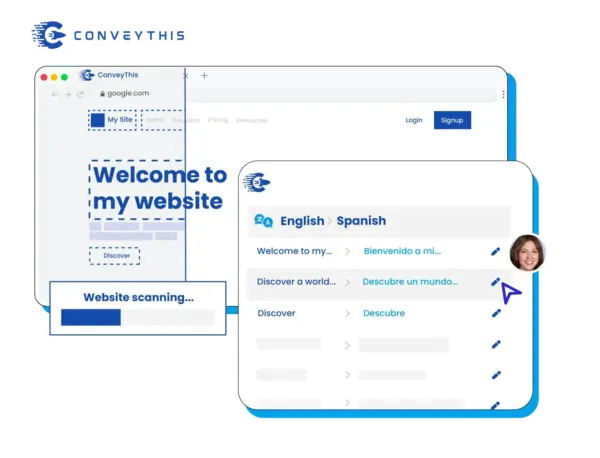
Storefront by ConveyThis, payment pages by Shopify
ConveyThis translates the storefront: products, collections, the cart, theme text and text added by other apps. Shopify renders the checkout on its own secure pages and takes that wording from the languages you add and publish in your Shopify admin. Setting up both gives shoppers one language from the product page to the payment step.
Set it up once for each language
Add the language under Settings → Languages, enter the checkout wording on the Checkout and system tab of the theme content editor, and publish. From then on, a customer who browsed your shop in German also sees the delivery, payment and confirmation steps in German.
Shopify Language URLs for Your Store
Sub-domains rather than folders
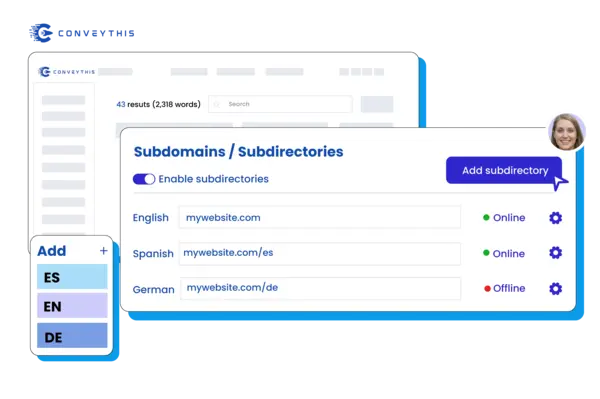
A Shopify store cannot be served through a path-based proxy, so ConveyThis offers language sub-domains such as fr.yourstore.com instead of /fr/ folders: one CNAME record per language, on the Business plan or higher. Each translated storefront page gets hreflang tags plus a translated title and meta description, while the checkout itself stays with Shopify.
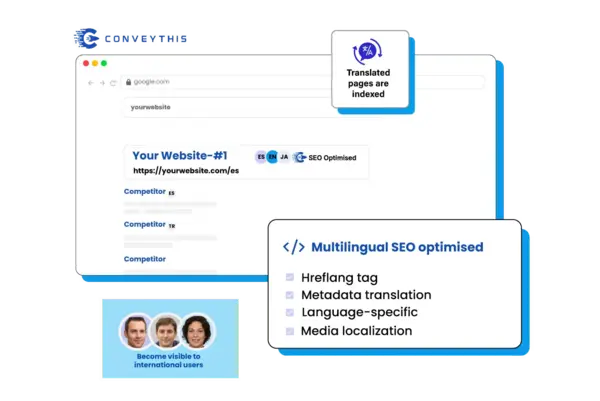
Checkout Wording You Control
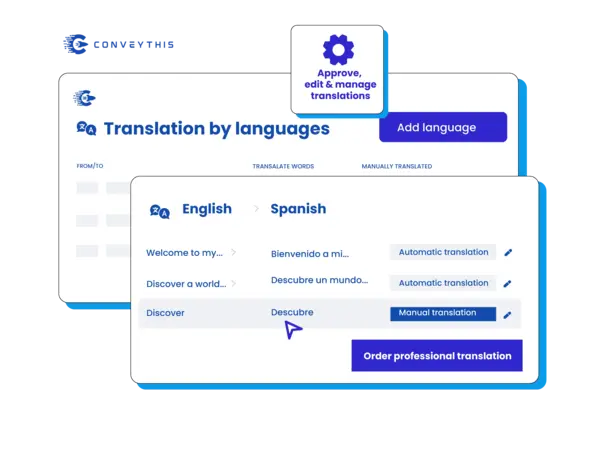
Overwrite any checkout line
Shipping notes, button labels, error messages and policy links on the Checkout and system tab can all be rewritten per language, so the last step of the purchase keeps the tone of your translated product pages instead of falling back to stock phrasing.
After the Order Emails in the Shopper’s Language
Order and shipping notifications
Shopify sends notification emails itself, outside your storefront. Our email guide gives you a short Liquid block for each template under Settings → Notifications, so the confirmation goes out in the language the order was placed in.
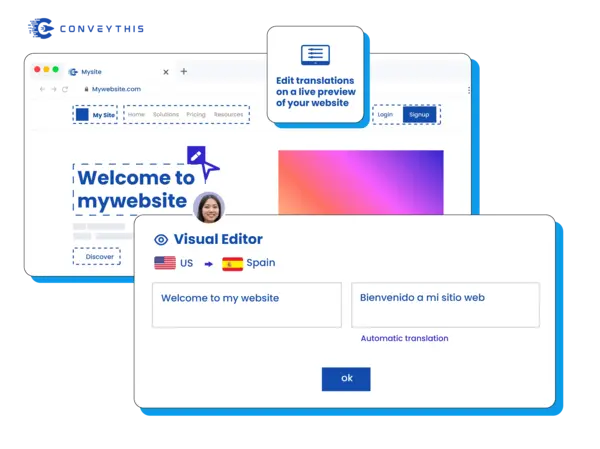
Before You Launch Test Every Language
One test order per language
Walk through the cart, each checkout step, the thank-you page and the confirmation email in every language you publish. If a second language switcher shows up on a page, hide ours there with the exclusion settings so shoppers see only one.
Easily manage the whole purchase path
Storefront
Translated automatically by the ConveyThis app, including new products as you add them, and editable in the visual editor.
Checkout
Served by Shopify from the languages you publish in Settings → Languages, with wording you can change on the Checkout and system tab.
Notifications
Sent in the order’s language once each email template has the Liquid block from our guide.
Why Choose ConveyThis for Shopify Translate Checkout
One dashboard
Manage strings, media, SEO, and app content in one workspace.
Glossary & rules
Lock brand terms and product names to keep translations consistent.
Multilingual SEO
Automatic hreflang, localized metadata, and clean language-specific URLs.
Visual editor
Translate in context — edit directly on the page and preview per locale.
Machine translation
Start fast with machine translations, refine with brand rules and memories.
Multilingual site structure
Storefront languages live on sub-domains (Shopify has no /fr/ folders); checkout follows Shopify.
Visitor auto-redirection
Optionally route visitors to their browser language to reduce bounce.
Learn how to get started
Translate the Shopify checkout in four steps.
Set up checkout translation for your Shopify store:
Translate the storefront first
Add the languages in Shopify
Fill in the checkout wording
Publish and check
Shopify checkout and email translation: common questions
Why does the checkout need its own setup step?
Which languages should I add in Shopify?
Can I change how a checkout label or button is worded?
After adding languages in Shopify, my store shows two language switchers. What now?
Can welcome and account emails follow the shopper's language too?
customer_tag: true to the ConveyThis code in ConveyThis_switcher.liquid (Online Store → Themes → Edit code), and ConveyThis tags each customer with the language they registered in. A Liquid block in the customer notification then picks the matching text. The order-email method does not cover the gift card creation alert. Shopify also offers a Localize button in Settings → Notifications through its Translate & Adapt app. Copy the code from our email notification guide.Have a different question?
Reach out to our dedicated support team — we're here to help, in multiple languages