
Joomla Integración
Integrar ConveyThis en su sitio es rápido y sencillo, y Joomla no es una excepción. En unos minutos instalarás la extensión ConveyThis, la conectarás a tu cuenta gratuita ConveyThis y publicarás tu primer idioma traducido, sin escribir ningún código.
Requisitos: Joomla 4, 5 o 6 y PHP 8.1 o más reciente. Joomla 3 no es compatible.
1) Instale la extensión ConveyThis
En su administrador Joomla, vaya a Sistema → Instalación → Extensiones y abre el Instalar desde la Web tab. Tipo ConveyThis en el campo de búsqueda y haga clic en el resultado ConveyThis.
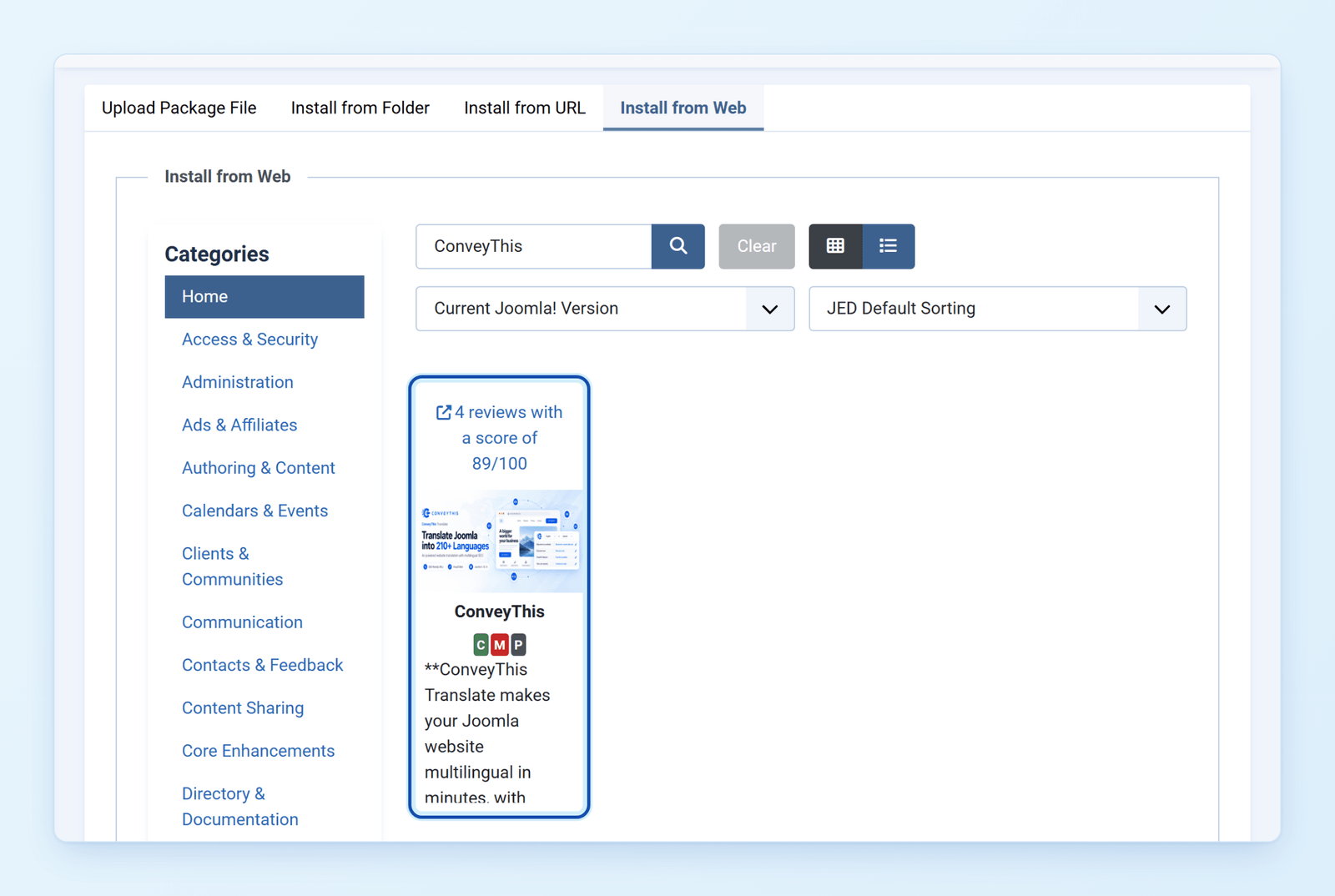
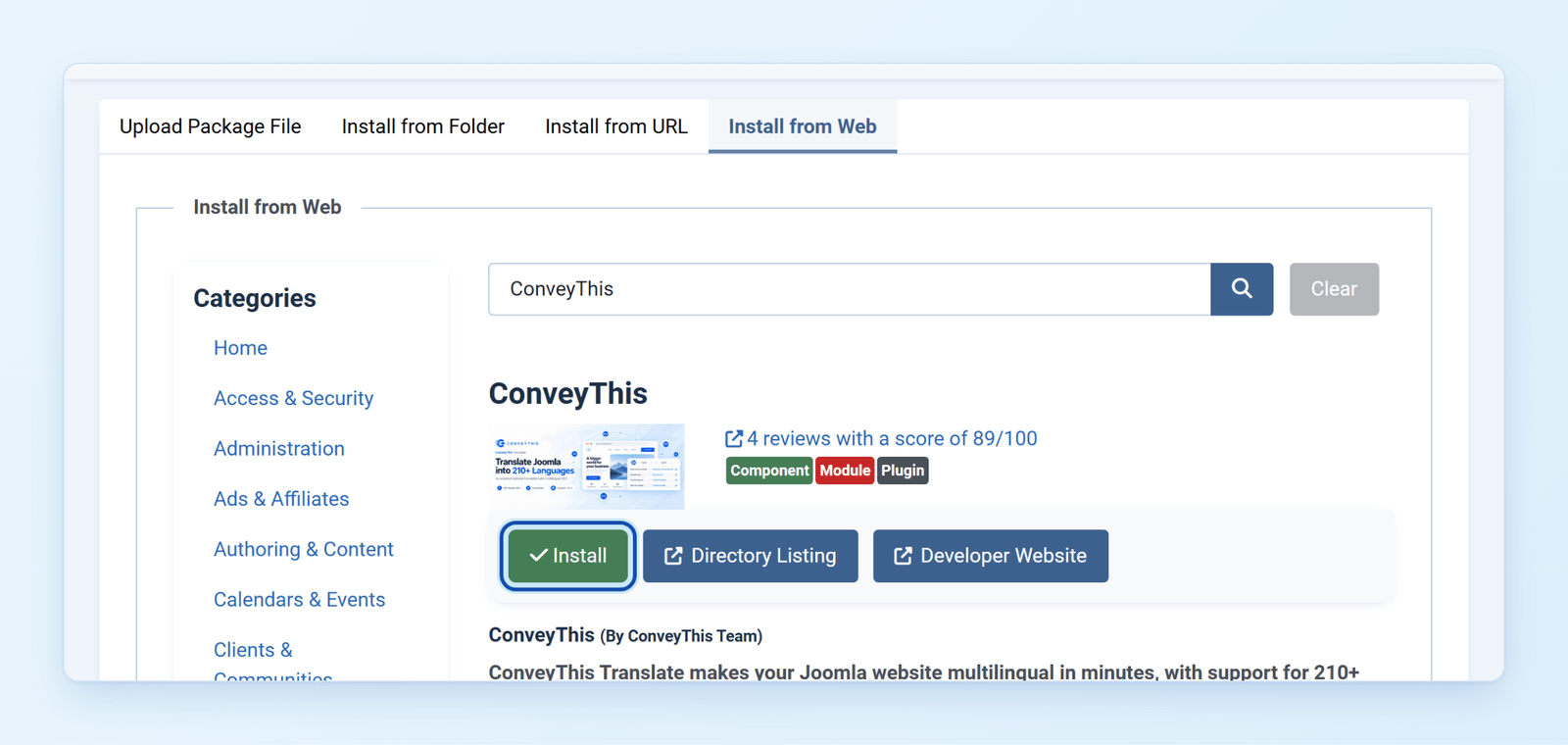
Haga clic Instalar, luego confirme en la siguiente pantalla.
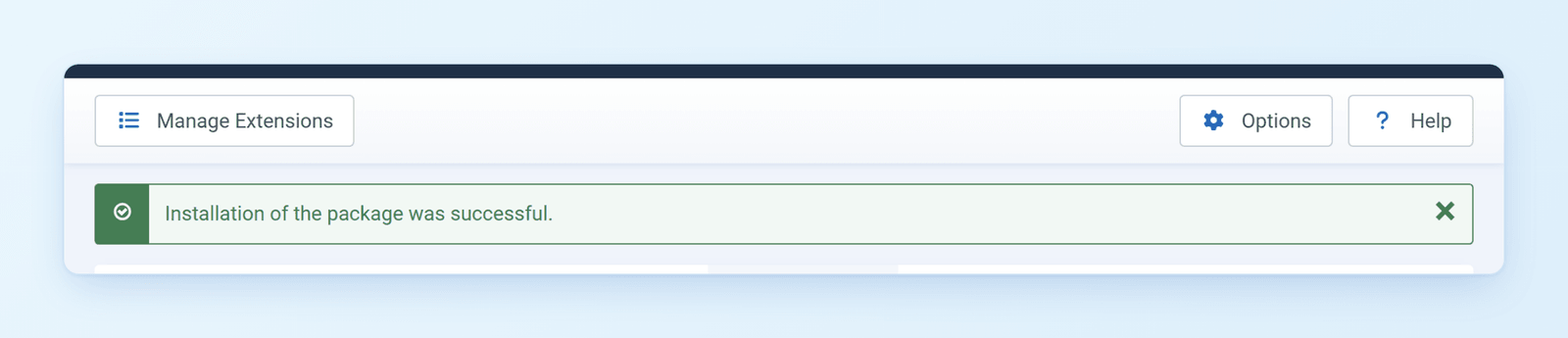
Cuando se muestra Joomla La instalación del paquete fue exitosa, la extensión está lista.
¿Prefieres subir el archivo tú mismo? Descargar conveythis.zip y déjalo caer en el Subir archivo de paquete pestaña en la misma página.
2) Abrir ConveyThis en Joomla
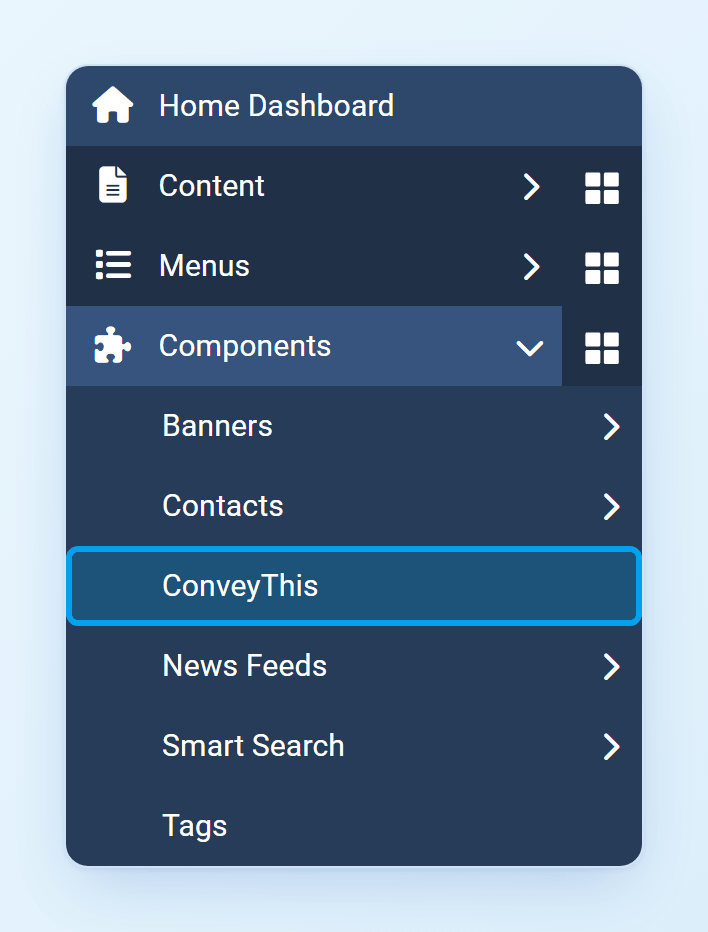
Ir a Componentes → ConveyThis.
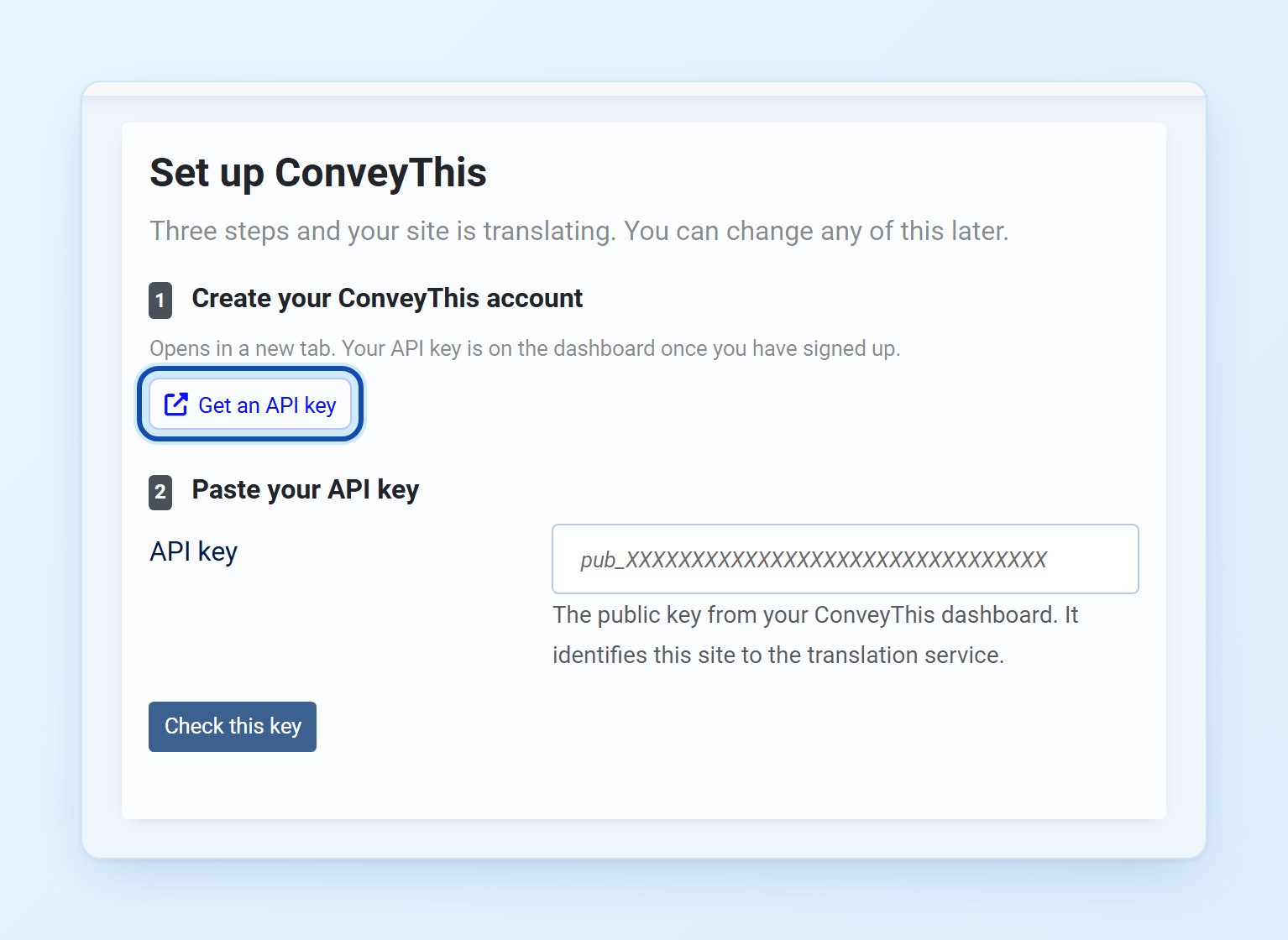
La primera vez que lo abra, ConveyThis mostrará una breve configuración: cree una cuenta, pegue su clave API, confirme sus idiomas.
3) Crea tu cuenta gratuita ConveyThis
Haga clic Obtener una clave API. La página de registro ConveyThis se abre en una nueva pestaña. Crea tu cuenta (no se requiere tarjeta de crédito) y confirma tu dirección de correo electrónico.

Luego siga la configuración corta: seleccione Joomla como tecnología de su sitio web, si se le solicita, confirme su dominio, elija el idioma en el que está escrito su sitio y los idiomas que desea agregar. Su clave API se muestra en el panel una vez finalizada la configuración. Parece que pub_xxxxxxxxxxxxxxxx.
4) Pegue su clave API y comience a traducir
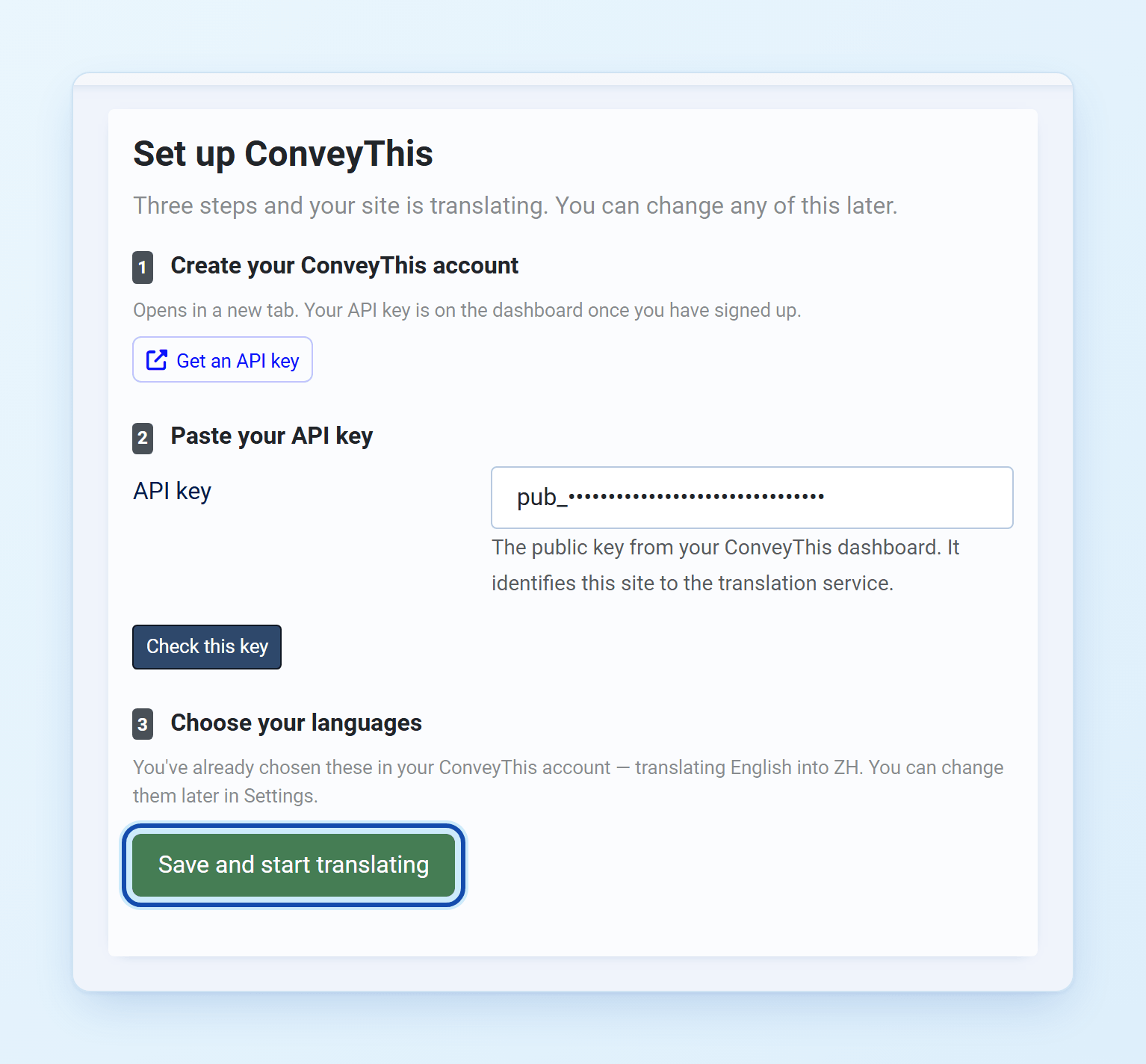
Regrese a la pestaña Joomla, pegue la clave API y haga clic Comprueba esta clave. ConveyThis completa los idiomas que elegiste en tu cuenta, para que no tengas que elegirlos dos veces. Haga clic Ahorra y empieza a traducir.
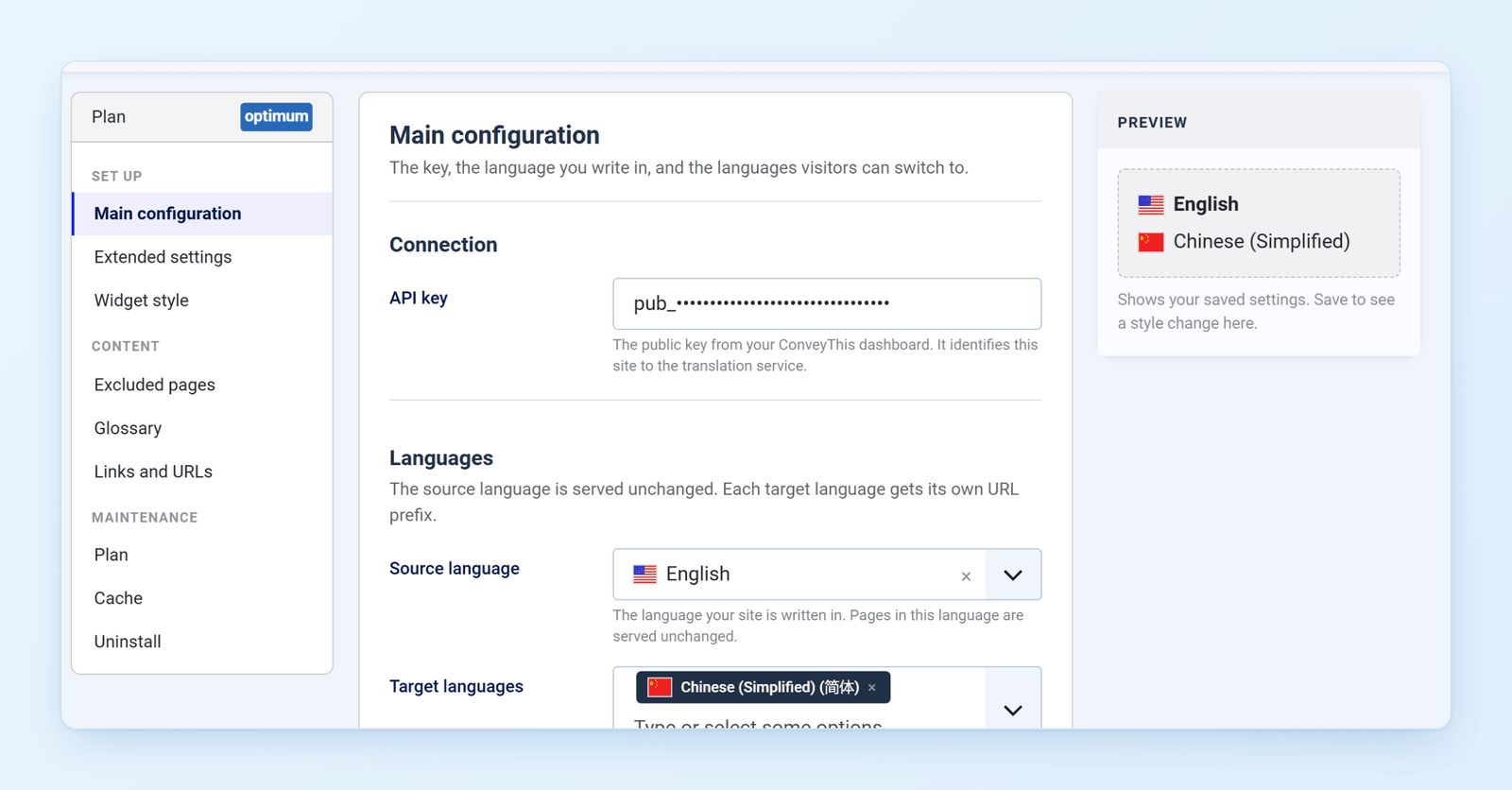
Aterrizas en la configuración ConveyThis. Puedes cambiar los idiomas aquí en cualquier momento y aplicar estilo al selector de idioma en Estilo de widget.
5) Habilitar “Reescritura de URL” en la configuración global
Cada idioma obtiene su propia URL, como por ejemplo /es/about. Para que esas URL funcionen, vaya a Sistema → Configuración global, y en el SEO conjunto de secciones Utilice la reescritura de URL a Sí, luego haga clic Guardar. Sin él, las páginas traducidas pueden devolver un error 404.
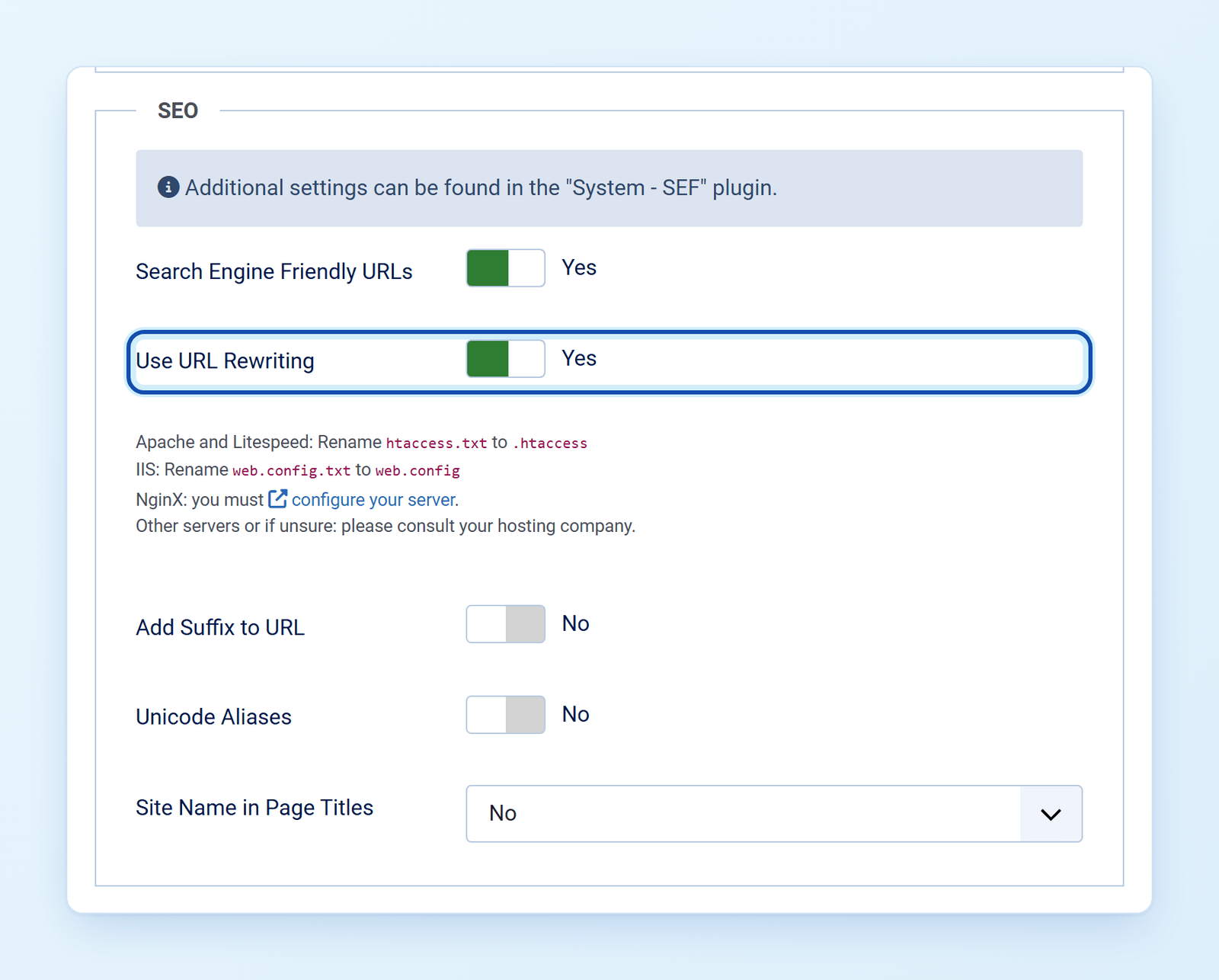
Dependiendo de tu hosting:
- Apache y LiteSpeed: rename
htaccess.txta.htaccessen su carpeta raíz Joomla. - IIS: rename
web.config.txtaweb.config. - NGINX: debes configurar tu servidor.
- Otros servidores o si no está seguro: por favor consulte a su empresa de hosting.
¿Cómo utilizar el filtro de idioma propio de Joomla’? Apágalo. Joomla’s Filtro de idioma el complemento utiliza los mismos prefijos de idioma en la URL (/es/), y los dos entrarán en conflicto. ConveyThis lo detecta y ofrece desactivarlo por usted.
6) ¡Ya terminaste!
Eso es todo. Abra su sitio web: el selector de idioma aparece en la esquina inferior derecha. Puede tardar uno o dos minutos en aparecer la primera vez.
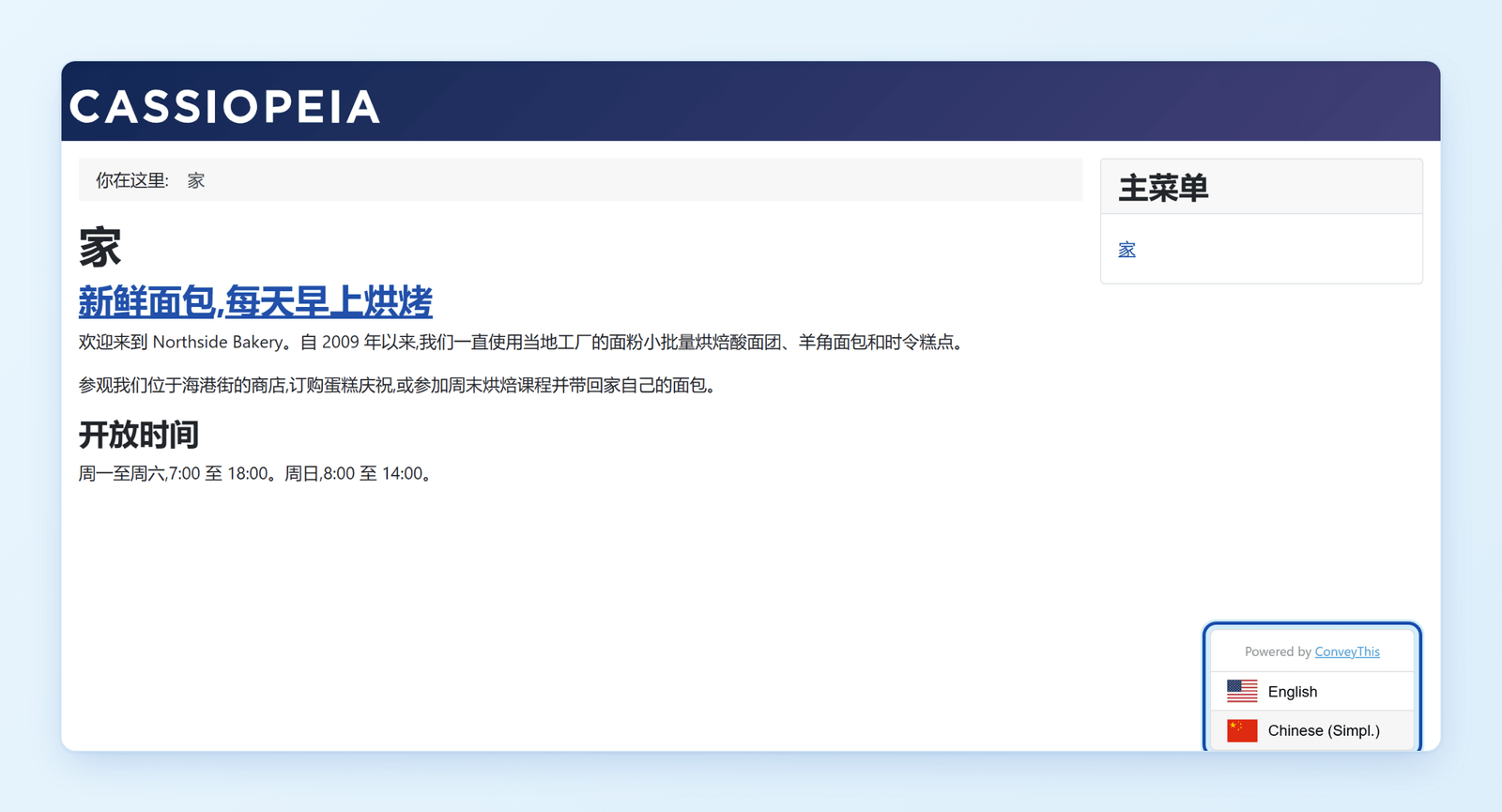
Cambie el idioma y su sitio web será multilingüe. Para revisar o editar traducciones, abra Mis traducciones en tu ConveyThis panel de control, o utiliza el editor visual para editarlos directamente en tus páginas.
¡Felicitaciones, ahora puedes comenzar a traducir tu sitio web!